
You can permanently erase your account and everything stored against it, from your phone and from our cloud, without contacting us. It takes about a minute inside the app. If you can no longer sign in, use the email request instead.
Never signed in? Then nothing of yours has ever left your phone, so there is no cloud account to delete. Uninstalling the app removes all of your data. See Using the app without an account.
Option 1: delete it yourself in the app
Open Driving License Tayari on the device where you are signed in, then follow these four steps.
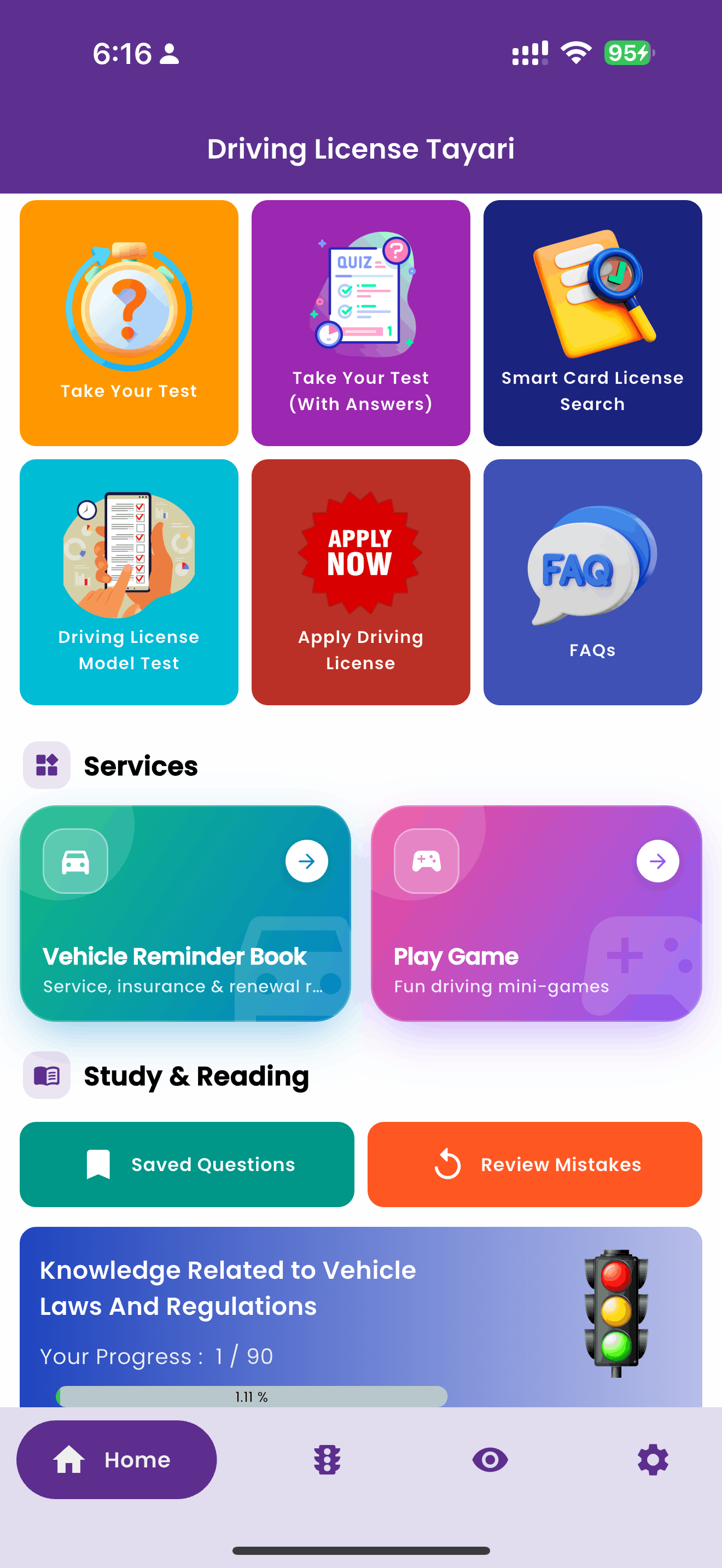
Open Settings
From the home screen, tap the gear icon at the far right of the bottom navigation bar.
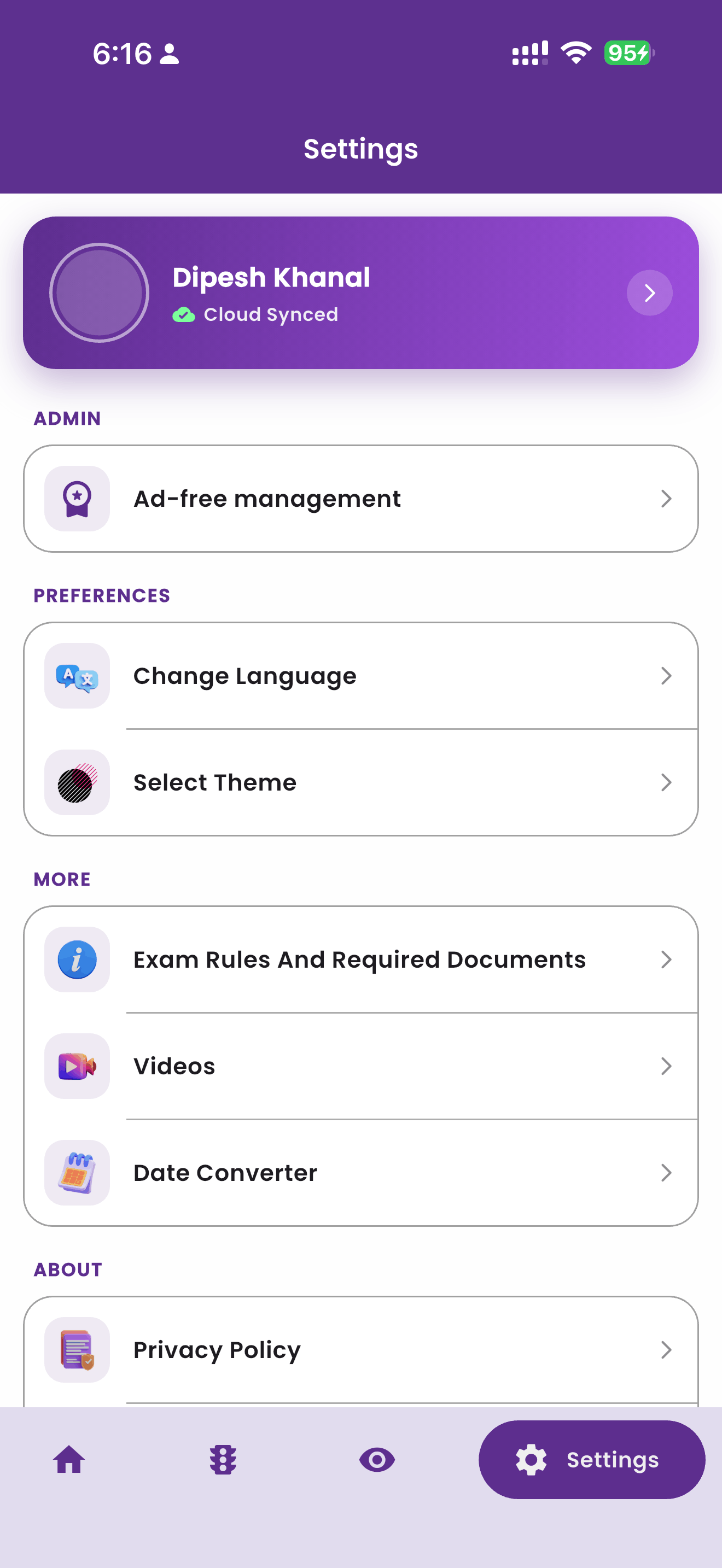
Tap your profile card
At the top of Settings you will see your name and Cloud Synced. Tap that purple card to open your Account page.
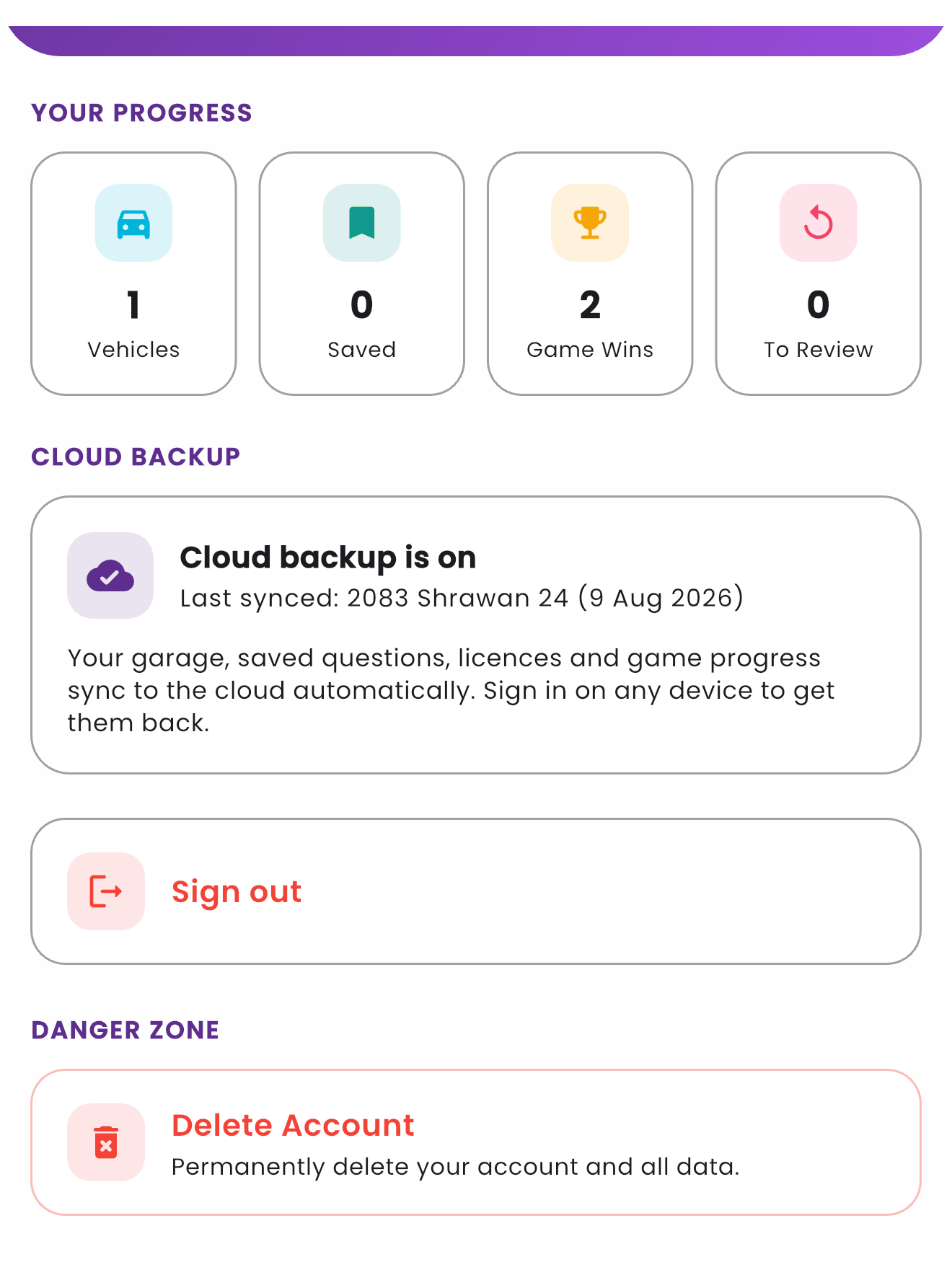
Scroll to Danger Zone → Delete Account
Below your progress and cloud backup status you will find the Danger Zone. Tap Delete Account, labelled "Permanently delete your account and all data".
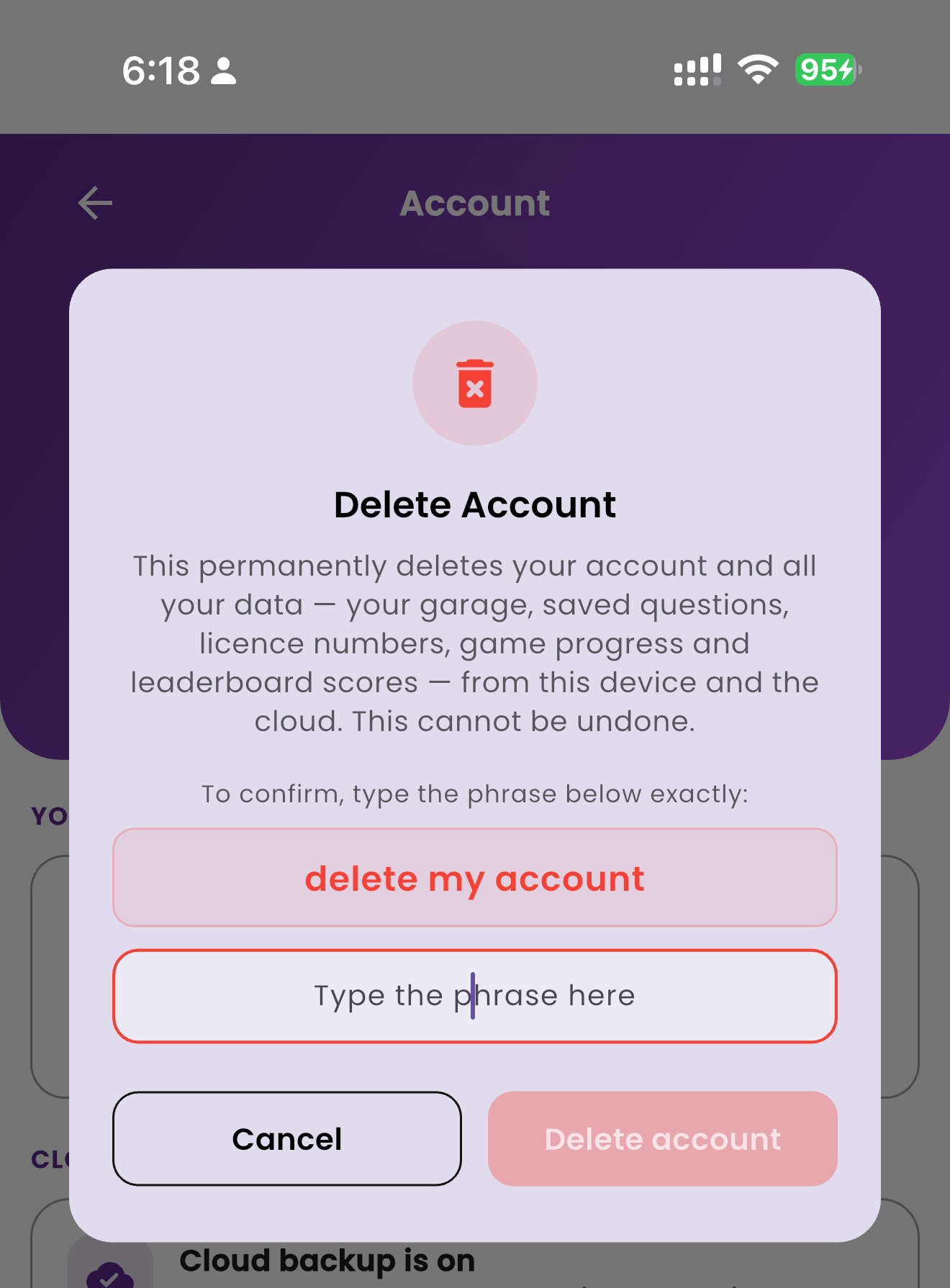
Confirm by typing the phrase
To make sure this is deliberate, type delete my account exactly as shown, then tap Delete account. The deletion runs immediately and cannot be undone.
What gets deleted
Confirming the dialog above erases, right away:
| Data | Where it lived | Result |
|---|---|---|
| Your cloud backup: Vehicle Reminder Book (vehicles, reminders, service and fuel logs), bookmarked questions, mistake list, saved licence numbers and game progress | Cloud Firestore, users/{your id} | Deleted |
| Photos of vehicle documents you uploaded | Cloud Storage, your account's folder | Deleted |
| Your leaderboard entries: display name, profile photo and best score in every game | Cloud Firestore leaderboards | Deleted |
| Your garage, study data and saved licence numbers on the phone you are using | On the device | Wiped |
| Your sign-in identity for the app | Firebase Authentication | Removed, and you are signed out. If your session is old, your provider may ask you to sign in once more to finish this step. Your data is already erased either way, and you can email us to close out the identity. |
What is kept, and for how long
- A minimal deletion record: your former user ID, the email address and display name that were on the account, which sign-in provider you used, and the dates the account was created and deleted. We keep it to show the request was carried out and to prevent abuse. It holds no study data, no reminder book and no photos, and we will remove it on request.
- Anonymous analytics and crash reports: event and diagnostic data that was never linked to your name or email. Google retains it for its standard period (up to 14 months for analytics events) and then deletes it automatically.
- App settings on your device: language, theme and notification preferences stay, so the app keeps working normally after the wipe. Uninstalling removes them too.
This cannot be undone. If you want to keep your reminder book or document photos, save them elsewhere before you delete. Signing in again later creates a brand-new, empty account.
Other devices you were signed in on
The cloud copy is gone the moment you confirm, so nothing can be restored anywhere. Data still sitting on a second phone is cleared when that phone next opens the app and signs out, or immediately if you uninstall the app there.
Option 2: request deletion by email
If you have lost access to your Google or Apple account, changed phone, or simply prefer that we do it, send us a request.
To: [email protected]
Subject: Account Deletion Request
Include: the email address you signed in with, and whether you used Google or Apple. If you used Apple's Hide My Email, send us the relay address (it ends in @privaterelay.appleid.com).
Please write from the email address on the account where possible, as that is how we verify the request. If you cannot, we may ask for another detail only you would know, such as a vehicle saved in your Reminder Book, before we delete anything.
We acknowledge requests within 7 days and complete them within 30 days, as described in our Privacy Policy.
Using the app without an account
Signing in is optional. If you never signed in, your quiz progress, bookmarks, mistake list, Vehicle Reminder Book, document photos and licence numbers exist only on your phone, so we hold nothing to delete.
- To clear it: uninstall the app, or use Settings → Apps → Driving License Tayari → Storage → Clear data on Android.
- To stop future cloud backup while keeping the app, sign out from the Account page. Your synced personal data is cleared from that device.
Questions
Write to [email protected] and we will help. For the full picture of what the app stores and why, read the Privacy Policy.